
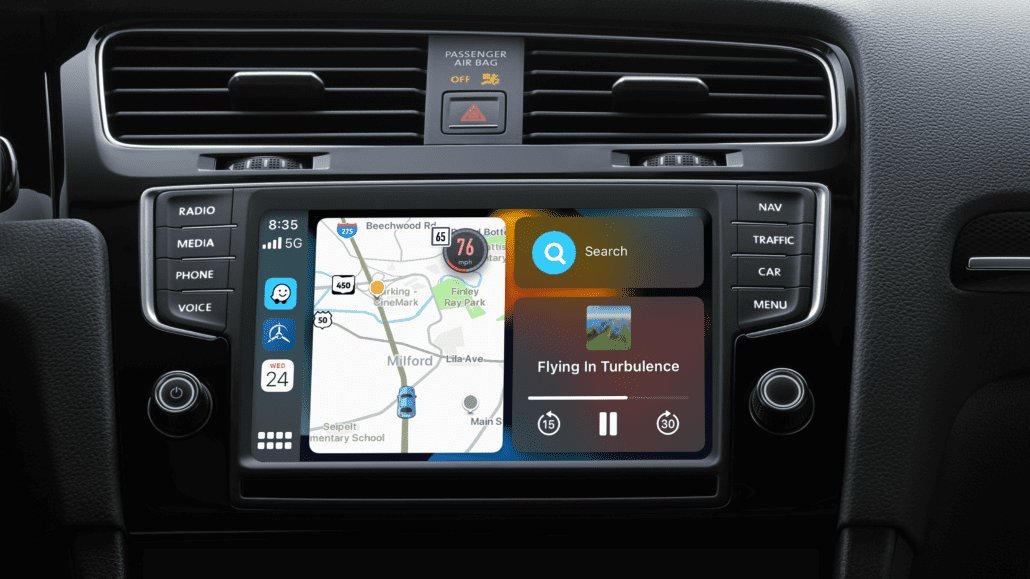
To disconnect CarPlay, open Settings > General > CarPlay on your iPhone, tap your car, and select Forget This Car — this permanently removes the pairing how to clear app cache on iPhone. For a temporary disconnect, simply unplug the USB cable (wired CarPlay) or turn off Bluetooth and Wi-Fi (wireless CarPlay). Forgetting the car is the only method that stops CarPlay from auto-connecting every time you get in.
CarPlay is convenient until it is not: it hijacks your audio when a passenger plugs in their phone, auto-launches in rental cars, or keeps connecting when you would rather just use the car’s built-in system. The right disconnect method depends on whether you want a one-time break or a permanent split.
Method 1: Forget This Car (Permanent Disconnect)
This removes the CarPlay pairing entirely. Your iPhone will no longer connect to that car automatically — or at all — until you set it up again.
Step 1: On your iPhone, open Settings.
Step 2: Tap General, then tap CarPlay.
Step 3: Under “My Cars,” tap the car you want to disconnect.
Step 4: Tap Forget This Car and confirm.
Done — the pairing is gone. If the car tries to prompt you to set up CarPlay again, decline the prompt on the car’s display. Apple documents this in its official CarPlay setup and settings guide.
Tip: if CarPlay apps like Spotify or Maps were misbehaving before you disconnected, clearing your iPhone’s app cache often fixes glitchy CarPlay audio and navigation without needing to touch the car’s settings at all.
Use this when: you sold the car, it is a rental you will never drive again, or you are tired of CarPlay launching in your own car and want it gone for good.
Method 2: Temporarily Disconnect Wired CarPlay
Wired CarPlay only runs while the cable is connected, so the fix is physical:
Unplug the USB cable from your iPhone or from the car’s USB port. CarPlay ends immediately and the car reverts to its own system.
Use a charge-only cable or port. Many cars have multiple USB ports but only one supports CarPlay data. Plugging into a charge-only port powers your phone without launching CarPlay — check your car’s manual for which port is which.
Use a USB data blocker. A small adapter (a few dollars online) passes power but blocks data, so you can charge without CarPlay ever starting. Useful if your car’s only data port is also the convenient charging spot.
Note: simply locking your iPhone does not disconnect wired CarPlay — it keeps running in the background.
Method 3: Temporarily Disconnect Wireless CarPlay
Wireless CarPlay connects over Bluetooth (for handshake) plus Wi-Fi (for data). Breaking either link drops the connection:
Option A — Turn off Bluetooth: swipe into Control Center and tap the Bluetooth icon, or go to Settings > Bluetooth and toggle it off. CarPlay disconnects within seconds.
Option B — Turn off Wi-Fi: same approach in Control Center or Settings > Wi-Fi. Wireless CarPlay needs the Wi-Fi link for the heavy lifting, so killing it drops the session.
Option C — Airplane Mode: the blunt instrument. It kills both radios at once and guarantees disconnection — handy in a rental when you are in a hurry.
These are temporary: the next time you start the car with Bluetooth and Wi-Fi on, CarPlay reconnects automatically (unless you used Method 1 to forget the car).
Stopping CarPlay From Auto-Connecting
If your complaint is that CarPlay keeps launching when you do not want it, you have options short of forgetting the car:
Disable CarPlay while locked: in Settings > General > CarPlay, tap your car and toggle off Allow CarPlay While Locked. CarPlay will not start until you unlock your phone — a good middle ground.
Restrict USB accessories: Settings > Face ID & Passcode (or Touch ID & Passcode) > toggle off USB Accessories. After your phone has been locked for an hour, USB data connections — including CarPlay — are blocked until you unlock. This is also a solid security setting generally.
Turn off “Ask to Join” prompts: some cars repeatedly prompt to enable CarPlay. Declining and checking “don’t ask again” (where offered) quiets this.
Screen Time restrictions: Settings > Screen Time > Content & Privacy Restrictions > Allowed Apps > toggle off CarPlay. This disables CarPlay system-wide until you re-enable it — the closest thing to an off switch Apple provides.
Disconnecting Someone Else’s Phone From Your Car
The reverse situation: a passenger’s phone keeps hijacking your car’s display. Fix it from the car’s side:
On the car display: go to the car’s Bluetooth/device list and disconnect or remove their phone.
On their iPhone: have them use Forget This Car (Method 1) so it never auto-connects to your vehicle again.
Prevention: plug their phone into a charge-only USB port or hand them a data blocker so charging does not trigger CarPlay. If you are juggling multiple devices in the car, our guide on forwarding text messages is handy for keeping important texts reachable without touching your phone while driving.
Frequently Asked Questions
Will forgetting the car delete anything from my iPhone?
No. “Forget This Car” only deletes the CarPlay pairing profile. Your apps, music, contacts, and settings are untouched. Re-pairing later takes about a minute.
Why does CarPlay keep connecting even after I disconnect it?
Because temporary disconnects (unplugging, toggling Bluetooth) do not remove the pairing — the phone and car remember each other and reconnect when conditions are right. Only Forget This Car breaks the cycle permanently.
Can I disable CarPlay but keep Bluetooth for calls and music?
Yes. Use Forget This Car in the CarPlay settings, then pair the phone through the car’s regular Bluetooth menu instead. You get hands-free calls and audio streaming without the CarPlay interface taking over the display.
Does disconnecting CarPlay affect my car’s built-in navigation?
Not at all. The car’s native infotainment system is completely independent. Disconnecting CarPlay just returns the display to the car’s own interface — navigation, radio, and vehicle settings all work as they did before CarPlay existed.